Skip to content
ViGen Studio Join waitlist
In development

One studio. Script to finished video.

ViGen Studio takes one project from script to images, voiceover, video, and render - built for creators, marketing teams, and studios.

script → images → audio → video → render

ViGen Studio - Generate / Video draft_04
Rendering with Veo 00:05 / 00:08
MODEL Veo Google Veo - video generation
MOTION Dolly
STYLE Cinematic
DURATION 8s
SHOWCASE / 01

Made in ViGen Studio

Generated video and stills, straight from projects. The output is the only color on this page.
Character, in motion veo · 8s
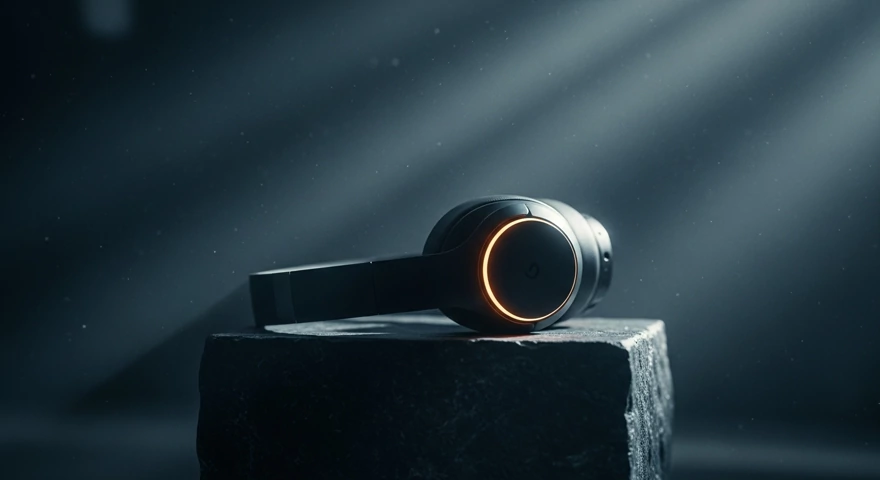
Generated still: a matte-black headphone on a stone pedestal
Product still imagen · still
Ocean, slow motion veo · 8s
Mountain peak veo · 8s
Lone tree, golden hour veo · 8s
START ANYWHERE

Start from what you have

A script, a prompt, an image, or a character - every project meets you where you begin.

SCRIPT A script Paste or write a script and break it into scenes automatically. PROMPT A prompt Describe a shot in words and generate video with Veo. IMAGE An image Bring a still and animate it into a moving shot. CHARACTER A character Save a character as an Element and keep it on model across every shot.
PIPELINE / 02

Five steps, one project

01
Script

Type a topic and Gemini writes a full script - split into scenes, each with narration and suggested shots. Or paste your own.

02
Images

Generate a still for each shot with Imagen, then refine it in place - swap a background, remove an object, or extend the frame.

03
Audio

Add voiceover for each scene in a click - from its narration - plus sound effects, with ElevenLabs.

04
Video

Animate each shot into motion with Veo - from a prompt or a still - with camera direction.

05
Render

Assemble the shots and audio on the timeline, then render a finished MP4.

FEATURES / 03

The studio, up close

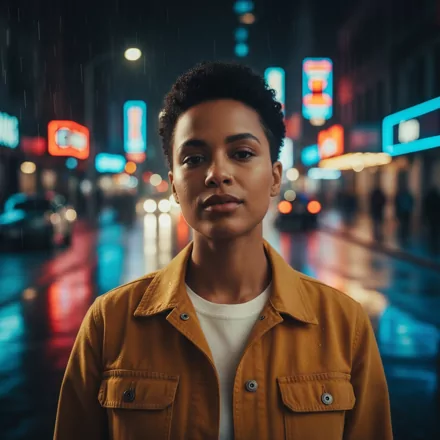
SC 01 Consistency with Elements

Define a character, object, or location once as an Element, then @mention it in any prompt - its reference keeps it on model across every scene and shot. Every frame below is the same person.
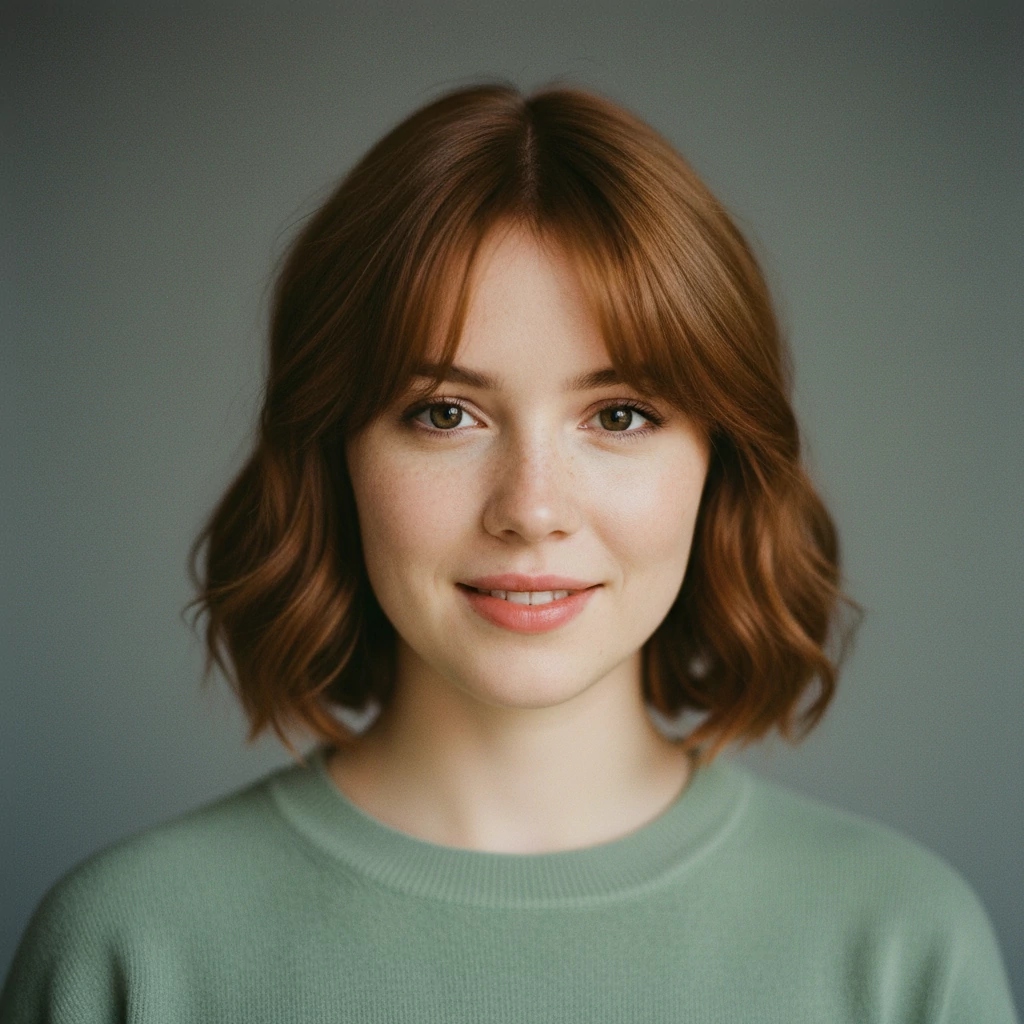
Locked character reference: a woman with a faded undercut in a mustard-yellow jacket
@character element
The same character on a rain-lit neon street at night
neon street, night on model ✓
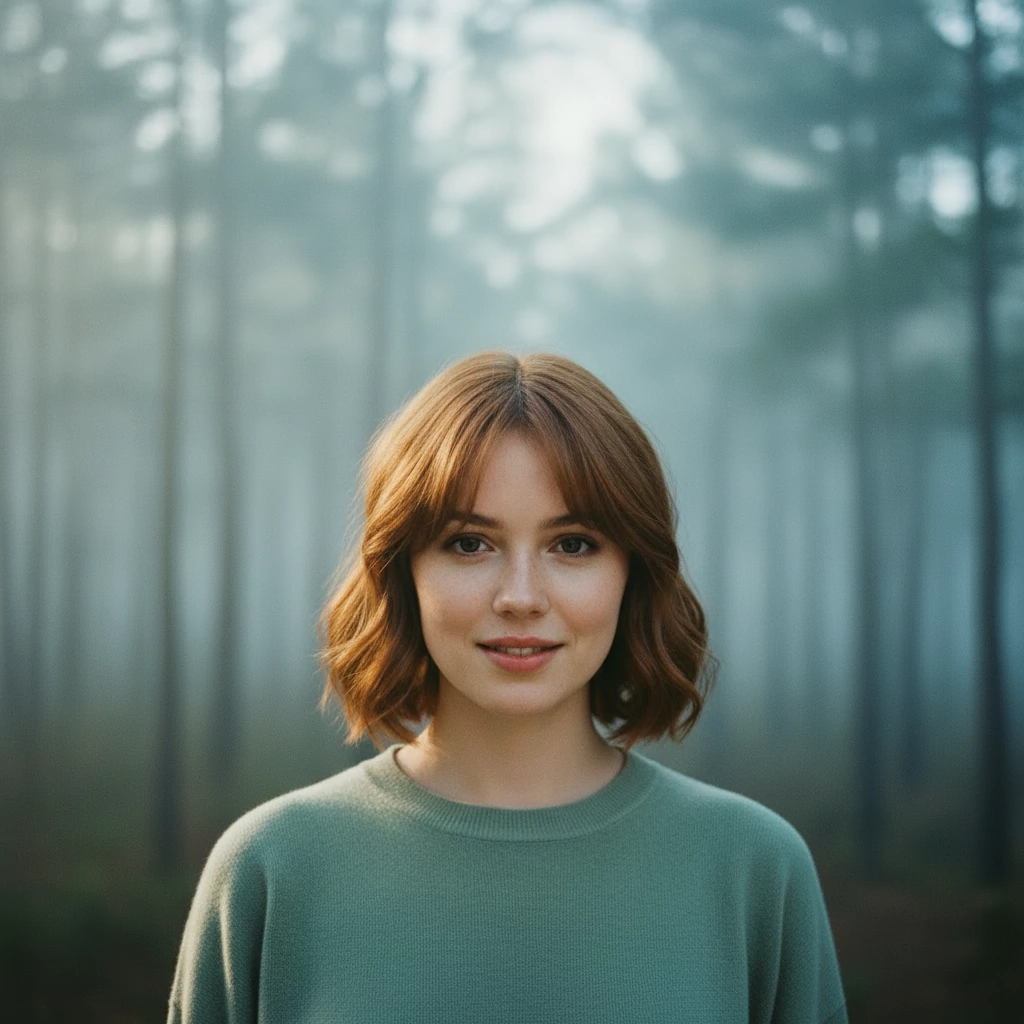
The same character standing in a misty forest at dawn
misty forest, dawn on model ✓
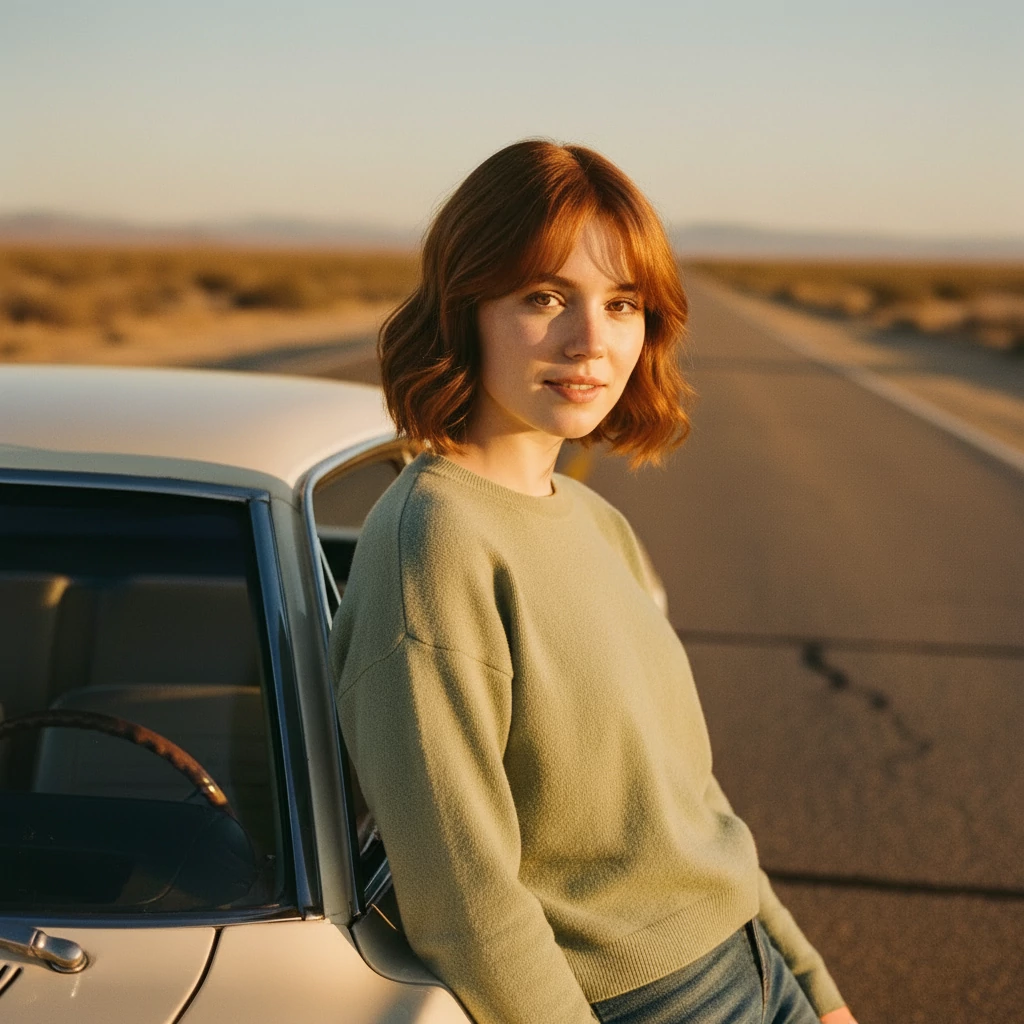
The same character beside a car on a desert highway at golden hour
desert highway, golden hour on model ✓
SC 02 Direct the camera

Generate from text or animate a still, then pick a camera move and keep it consistent shot to shot.

Dolly in selected
Pan left
Orbit
Handheld
STRENGTH0.6
APPLY TOall shots

Motion settings carry across the project, so a dolly at 0.6 reads the same in scene one and scene nine.

SC 03 Voiceover and sound, timed to the cut

Generate narration and sound effects with ElevenLabs, and they land on your scenes, not next to them.

NR Narrator - warm, low take_03 · 00:08 elevenlabs

00:02 · "Every frame starts with a sentence."

SC 04 Assemble and render

Lay your clips, voiceover, and sound on the timeline and render a finished MP4 - all in one project.

V1
sc_01 · veo
sc_02 · veo
sc_03 · veo
A1
SC 05 One project, whole team

Writers, editors, and reviewers work in the same project - with clear roles, invitations, and an audit trail.

AK Ana K. in Generate / Video owner
JR Jon R. in Edit / Timeline editor
MS Mia S. reviewing cut_04 viewer
MODELS
Veo Imagen Gemini ElevenLabs
The best generative models, one pipeline.
CAPABILITIES / 04

Everything in one studio

One project carries you from a topic to a finished video - no exporting between tools.

Script generation with scene breakdown
Image generation and in-place editing (Imagen)
Elements - @mention characters, objects, and locations to stay on model
Text-to-video and image-to-video (Veo)
Voiceover and sound effects (ElevenLabs)
Fusion Engine - fuse reference images into new compositions
Captions and subtitles
Timeline assembly, render, and export to MP4
Teams with roles, invitations, and an audit log
Programmatic access with API keys
FAQ / 05

Questions, answered

Anything else, ask us anytime - we read everything.

What is ViGen Studio?
ViGen Studio is an AI video studio. Script, images, voiceover, video, and render live in one project, so you go from a sentence to a finished video without switching tools.
Who is it for?
Creators, marketing teams, and studios - anyone who needs finished video on a schedule, not a pile of disconnected generations.
What happens when I generate a script?
Type a topic and Gemini writes a full script, broken into scenes. Each scene comes with its narration and up to five suggested shots - and each shot is a ready-to-use image prompt and video prompt. From there you generate the still, animate it with Veo, and add the scene's voiceover in a click.
Which models does it use?
Google Veo for video, Google Imagen for stills and references, Google Gemini for script and scene planning, and ElevenLabs for voiceover and sound effects.
Is it available now?
Not yet - ViGen Studio is still in development. Join the waitlist and we'll email you when it's ready for you to try.
How much will it cost?
Pricing isn't set yet - ViGen Studio is still in development. Join the waitlist and we'll share plans well before launch.
Who owns what I create?
You do. You keep the content you bring and the results ViGen Studio generates for you, subject to the underlying model providers' terms. The full details are in our Terms.
Can I use the results commercially?
Your results are yours to use, subject to the usage terms of the models that produced them (Google and ElevenLabs). We don't add extra restrictions of our own - review those providers' terms for your specific use.
Do you train AI models on my content?
No. Your projects are processed only to produce your results - we don't use them to train models and we don't sell them. See our Privacy Policy.
Can I export my work?
Yes - renders export as standard video files, ready to publish or to hand off to a downstream edit.